
MCP API keys
The key your own AI uses to work in Titan: create it, copy it once, revoke it.
An MCP API key lets your AI assistant (Claude Code or Codex) work in Titan for you. You create it once and give it to your AI: Your assistant.
A key has full access to your Titan account, Wi-Fi passwords included. Give it only to your own AI.
1. Create a key
-
In the left menu, press Settings.
-
Press the MCP API keys tab.
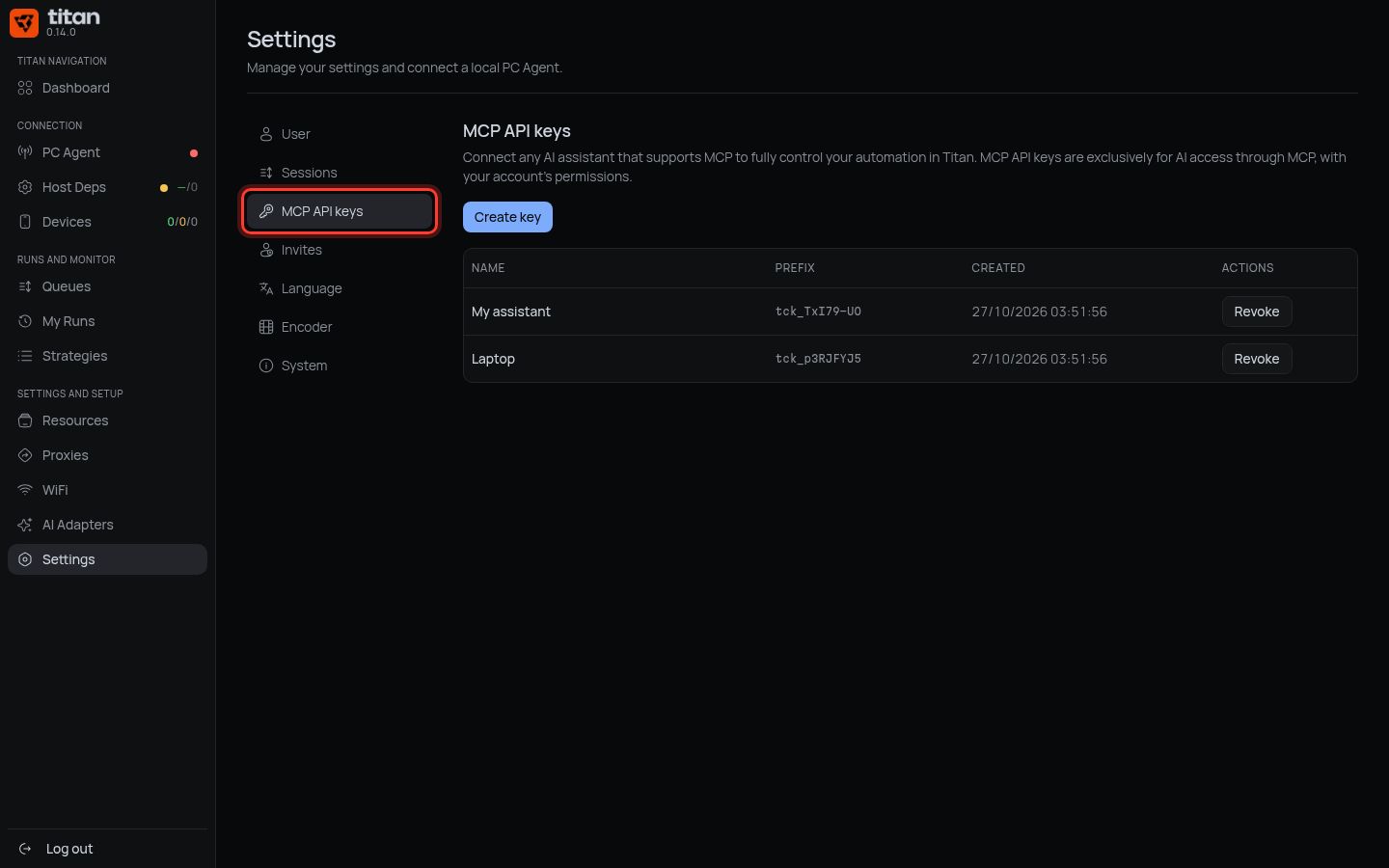
-
Press Create key.
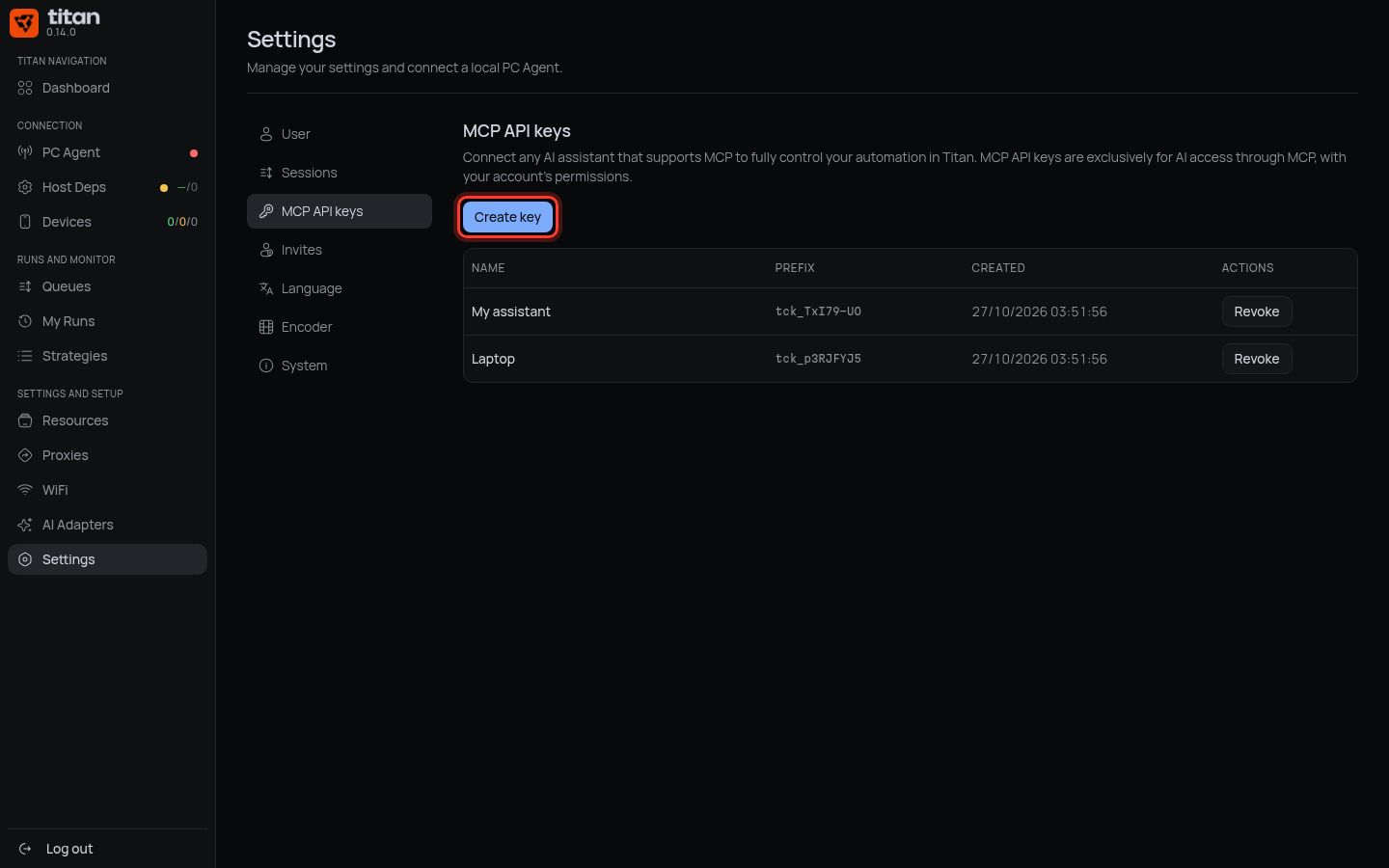
-
Key name: type a name you will recognise, for example
My AI. -
Press Create key.
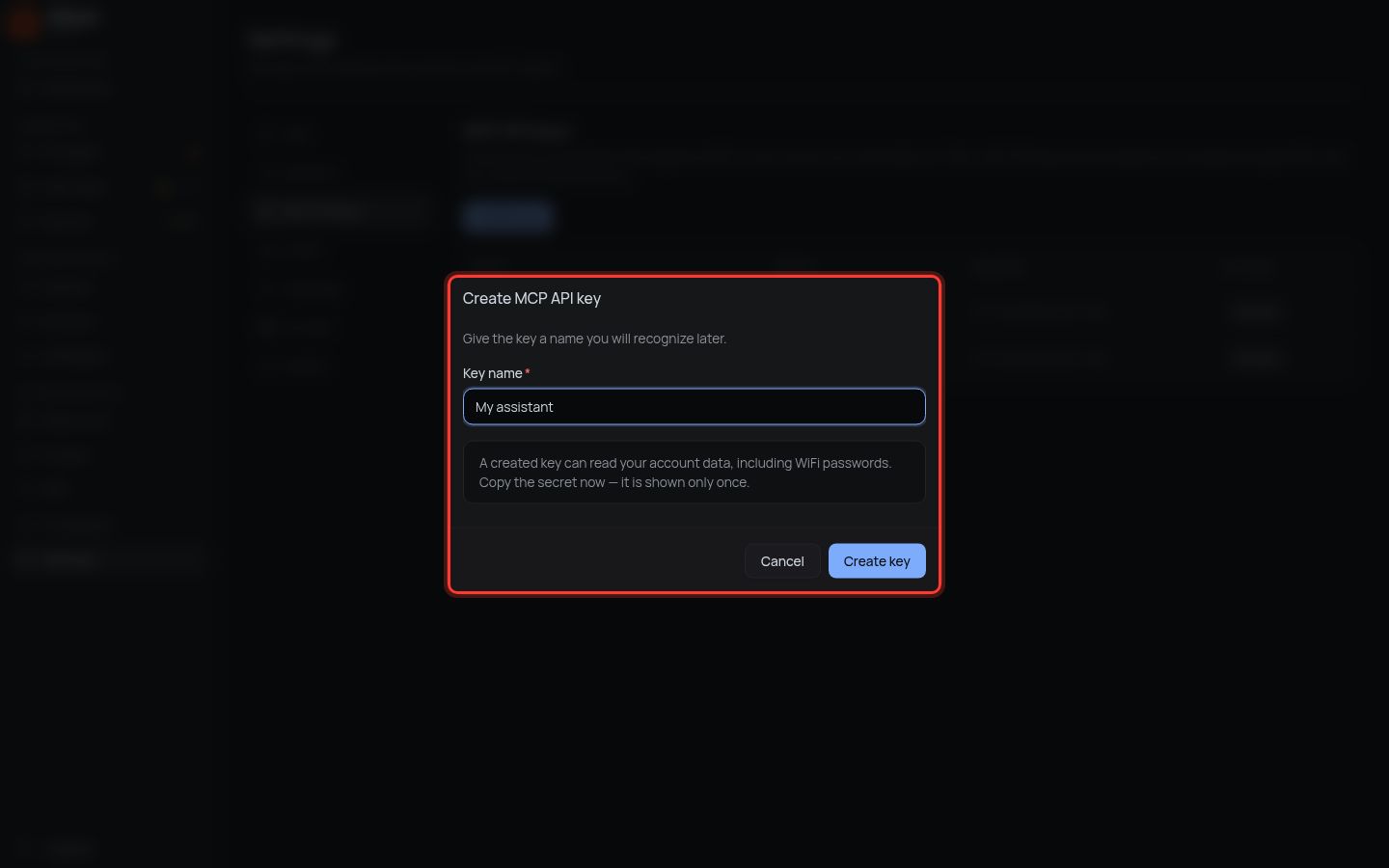
-
Press Copy secret. Paste it straight into your AI.
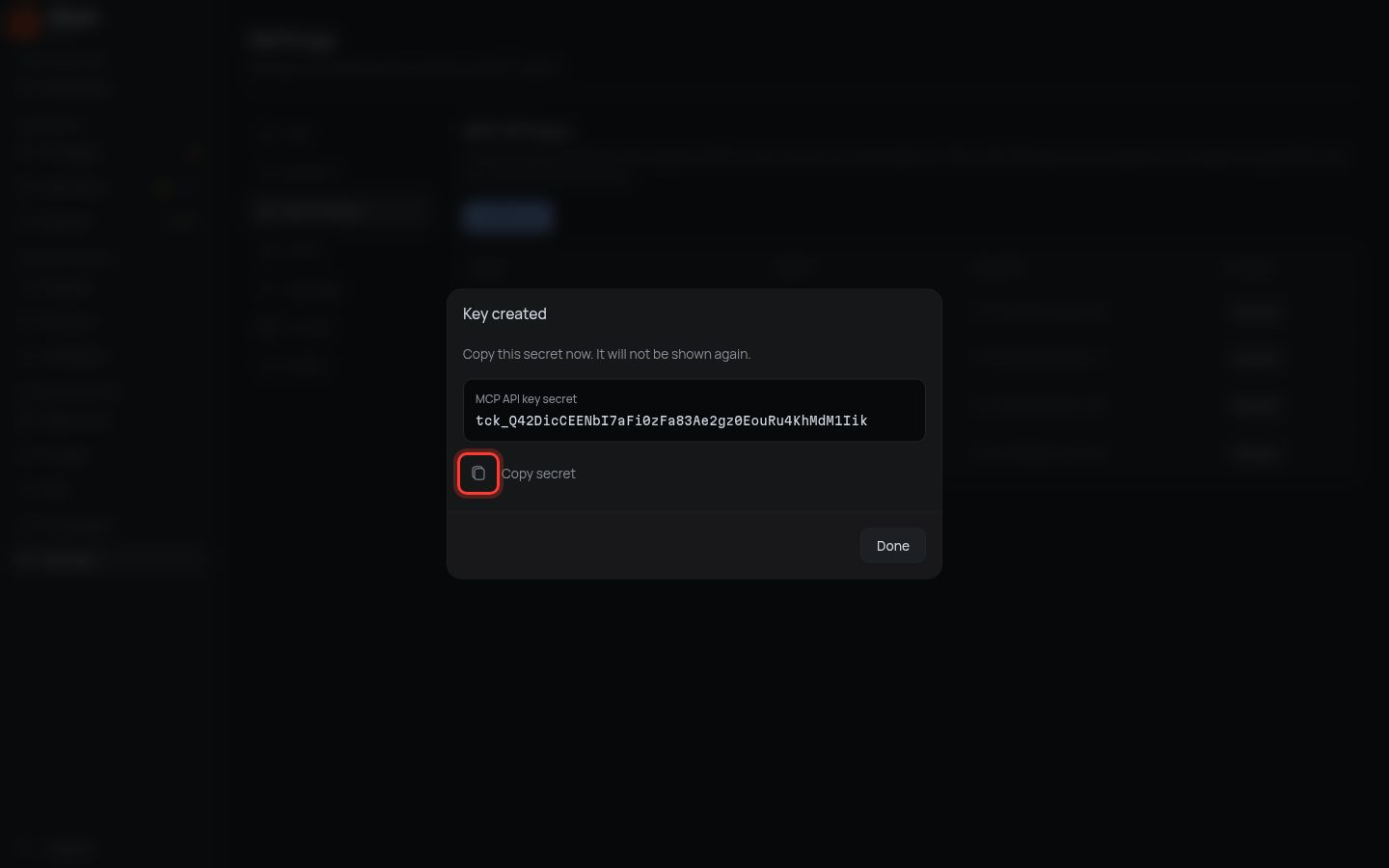
-
Press Done.
The secret is shown only once. After Done nobody can see it again, Titan included.
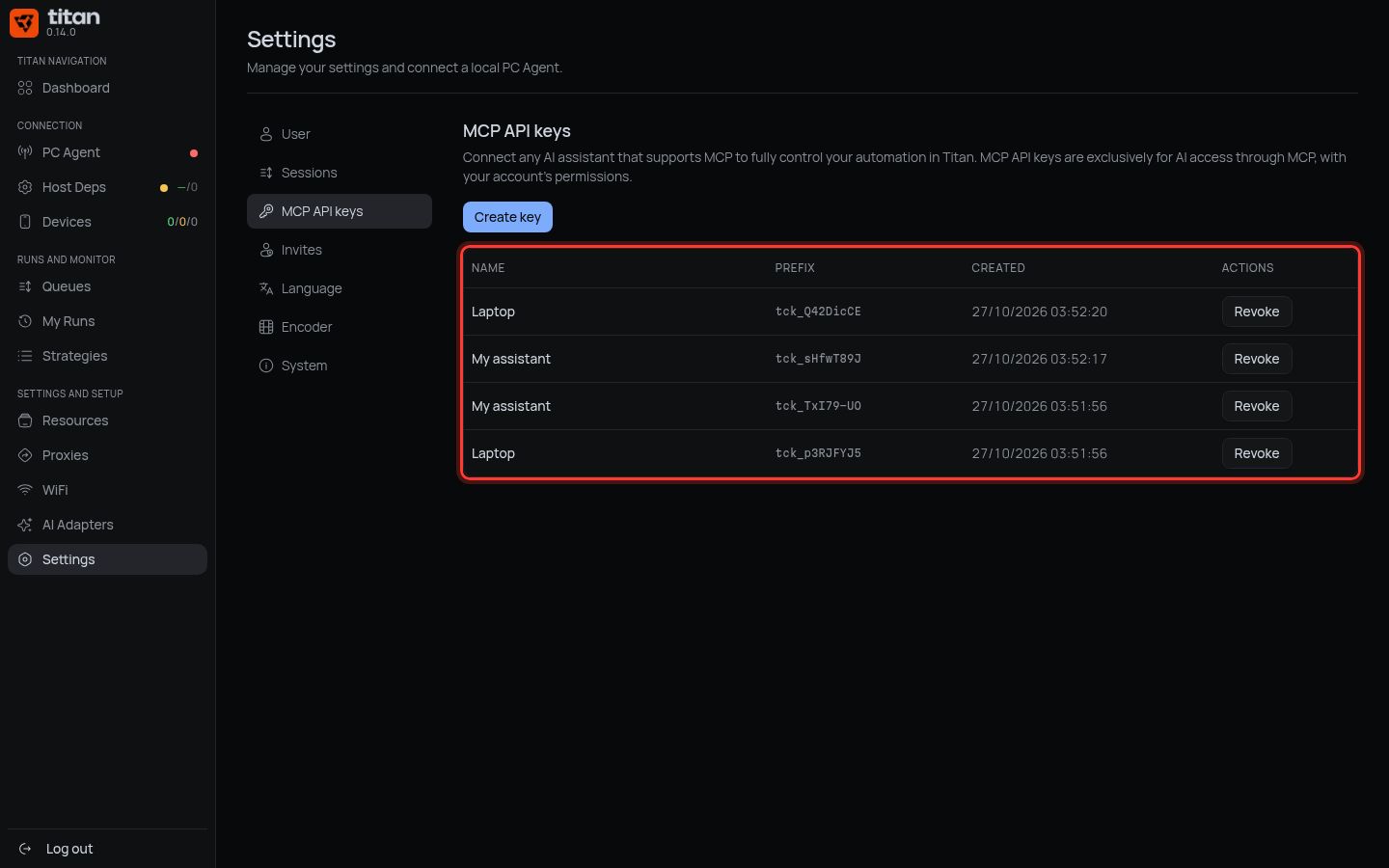
Done when: the key is in the list with its Name and Prefix.
2. Revoke a key
Revoke a key you no longer use, or one that someone else may have seen.
-
Find the key by Name and Prefix.
-
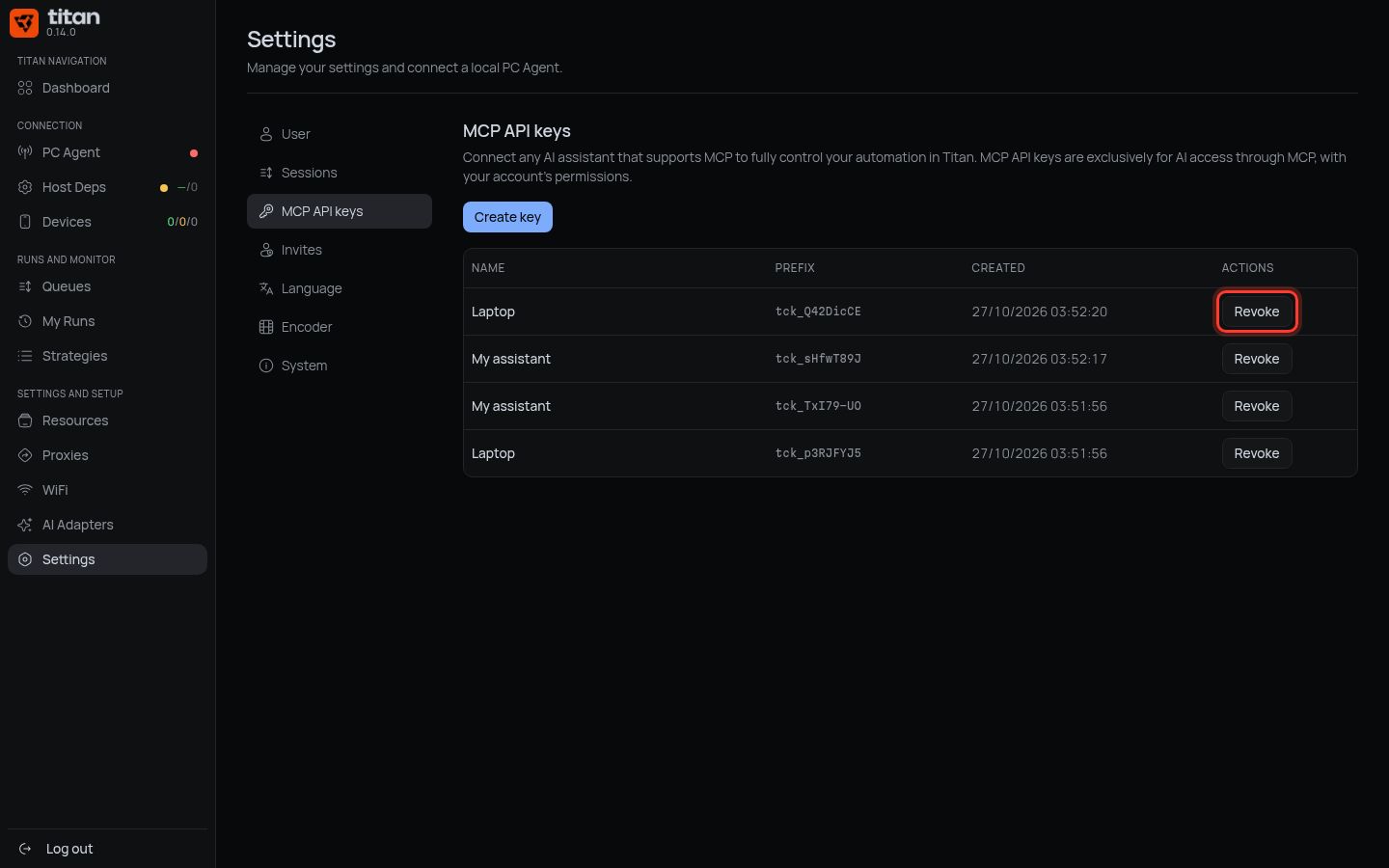
Press Revoke on its row.
-
Press Revoke key.
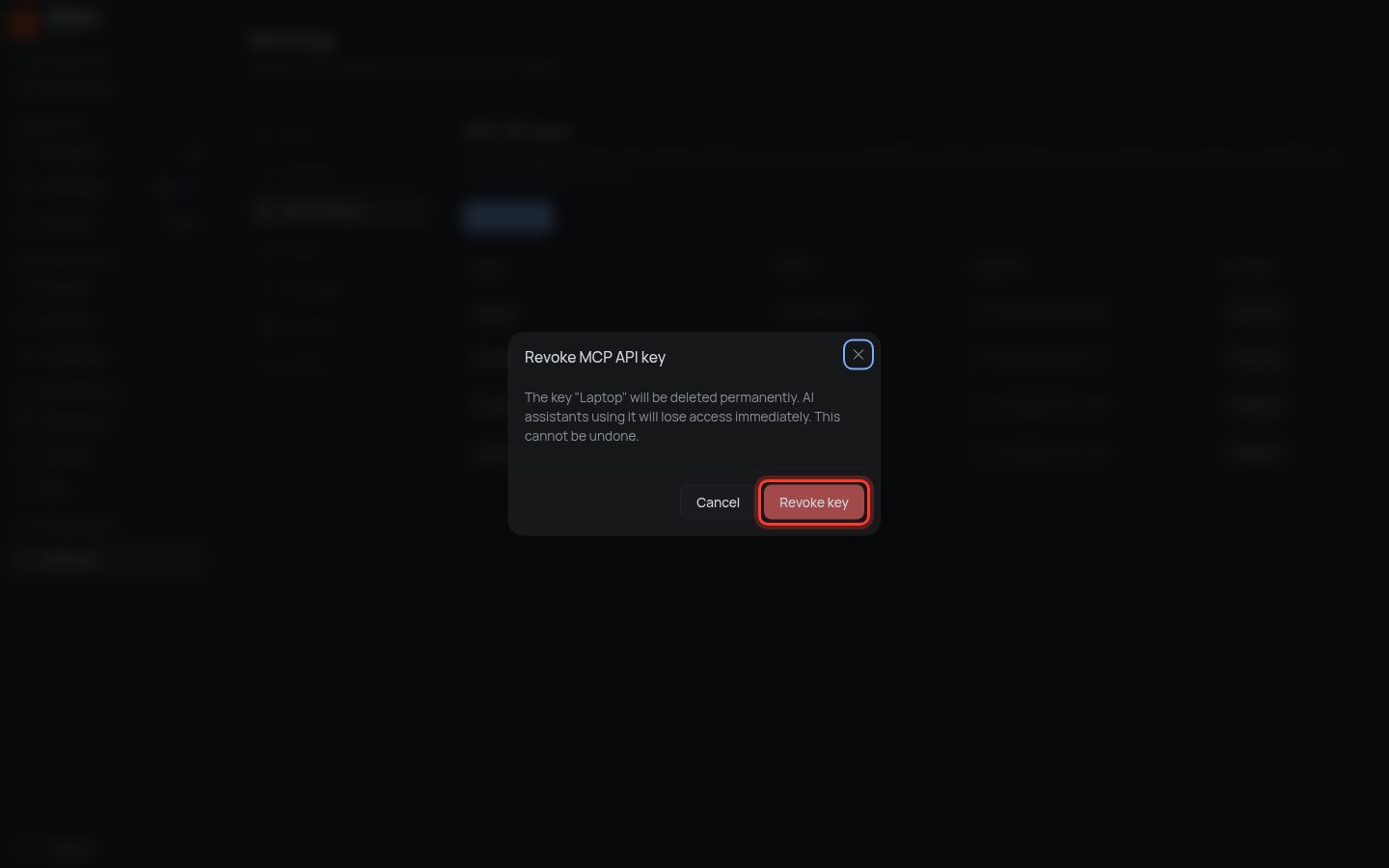
The key stops working at once. Any AI that used it loses access. This cannot be undone.
Revoking a key does not stop work that is already running. To stop work, use Manage queues.
3. Replace a lost key
You lost the secret, or it was in a message or screenshot others saw:
- Create a new key (section 1) and give it to your AI.
- Revoke the old key (section 2).
If something is different
| You see | Do |
|---|---|
| Key limit reached (5)… | You can have 5 keys. Revoke one you do not use, then create the new one |
| Use 1–100 characters… | Shorten the name. Use plain letters and numbers |
| Your AI says the key is invalid | The key was revoked or copied wrong. Create a new one and give it to your AI |
| That key was already revoked. | Nothing to do. The list is up to date |
| Could not refresh MCP API keys… | Press Retry |
This key is not your Titan password, not a PC Agent setup code, and not a key from an AI provider.
Next: Your assistant.